LibreDB Studio
LibreDB Studio is an open source, self-hosted, browser-based SQL editor. Its Databend connection type talks to Databend over the HTTP handler, the same API BendSQL uses, so it works with both Databend Cloud and self-hosted Databend without the MySQL handler or a driver.
LibreDB Studio is free and MIT licensed. With it you can browse databases, tables, views and materialized views, run SQL in an editor, page through large results, view query plans, draw an ER diagram, compare schemas, and export results as CSV, JSON or SQL INSERT statements. 64-bit integers stay exact in the result grid and in exports, and an AI assistant can draft SQL for you to review and run.
On Databend Cloud, LibreDB Studio does not resume a suspended warehouse on its own: it sends no background health checks to a connection with a warehouse, so compute runs only when you use it.
Prerequisites
- Node.js 24 or later installed, to start LibreDB Studio with
npx - For Databend Cloud: a warehouse and an SQL user (see User Authentication)
- For self-hosted Databend: the query node's HTTP handler port (
8000by default) reachable from the machine that runs LibreDB Studio
User Authentication
LibreDB Studio signs in to Databend with an SQL user and password, sent as HTTP Basic authentication on every request. After Databend refuses a password, LibreDB Studio does not send the same password again for 15 minutes, or until it changes, so a wrong password does not lock the user under a password policy.
If you are connecting to a self-hosted Databend instance, you can use the admin users specified in the databend-query.toml configuration file, or you can connect using an SQL user created with the CREATE USER command.
For connections to Databend Cloud, you can use the default cloudapp user or an SQL user created with the CREATE USER command. Please note that the user account you use to log in to the Databend Cloud console cannot be used for connecting to Databend Cloud.
LibreDB Studio has its own sign-in, separate from Databend users. On first start it generates an admin account and prints the email and password in the terminal.
Start LibreDB Studio
- Run the following command. On first run it downloads LibreDB Studio and then starts it on
http://127.0.0.1:3000:
npx @libredb/studio
The first start prints the generated admin credentials:
 LibreDB Studio first run: generated admin credentials
 Email:    admin@libredb.org
 Password: <generated password>
- Open
http://127.0.0.1:3000in a browser and sign in with these credentials. The Admin Dashboard opens; click Editor to go to the SQL editor.
Connecting to Databend Cloud
Obtain Connection Information
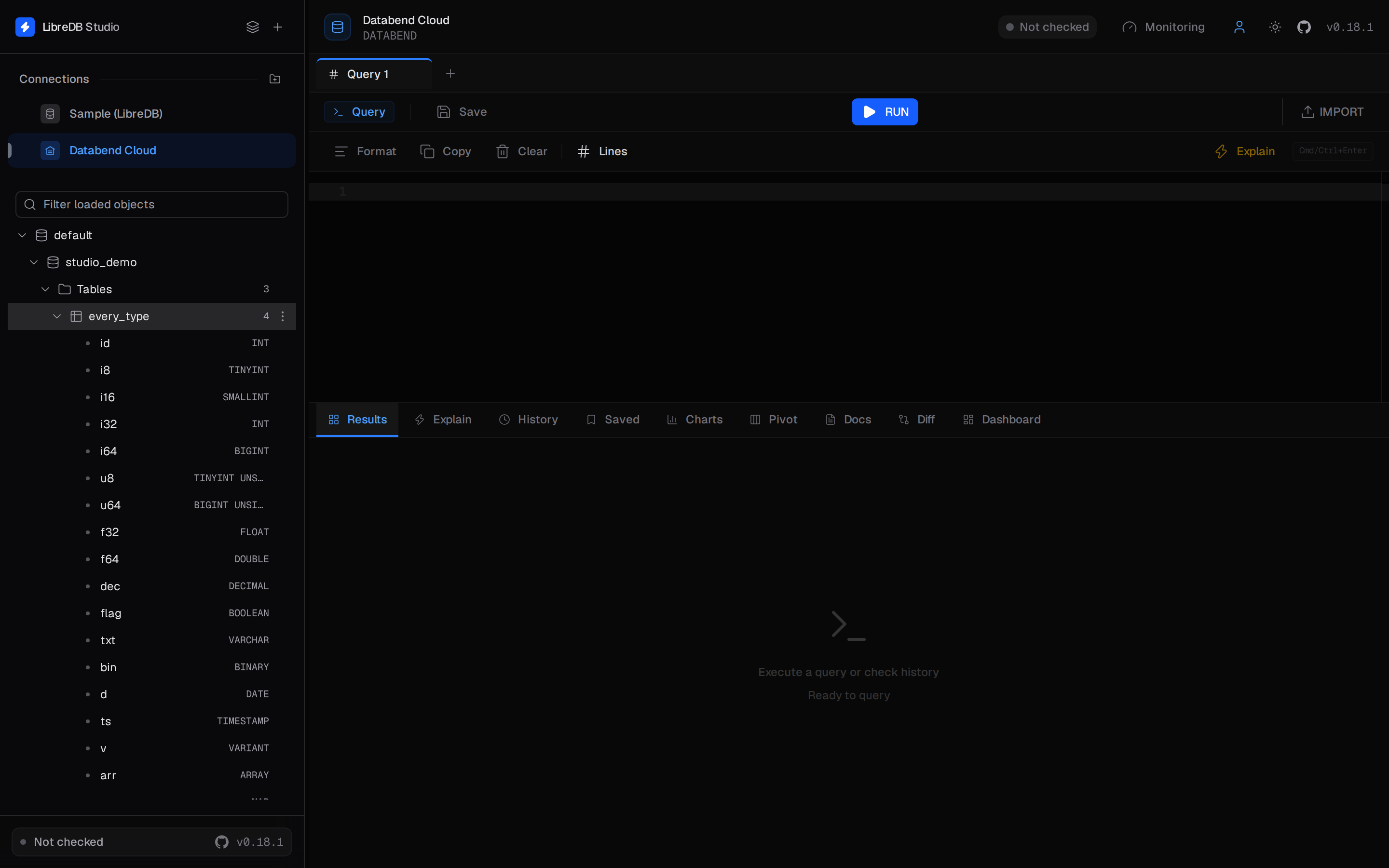
Log in to Databend Cloud and click Connect on the Home page, then select the database and warehouse. The Connect dialog shows a DSN with the host, the user, the database and the warehouse:
databend://cloudapp:<password>@<tenant>.gw.<region>.default.databend.com:443/<database>?warehouse=<warehouse>
For more information, see Obtaining Connection Information.
Configure Connection
-
In the left sidebar of LibreDB Studio, click the + (New connection) button. Enter a Connection Name, for example
Databend Cloud, and select Databend as the connection type. -
Click Paste URL and paste the DSN from the Connect dialog. LibreDB Studio fills in the fields from it. You can also enter them by hand:
| Field | Value |
|---|---|
| Host & Instance | The host from the DSN, and port 443 |
| Username | cloudapp, or an SQL user created with CREATE USER |
| Password | The user's password |
| Database Name | The database for names a statement does not qualify, for example default. For a user granted a single database, use that database |
| Warehouse | The warehouse= value of the DSN |
- Expand SSL / TLS and set SSL Mode to
verify-systemif it is not already set. Databend Cloud serves HTTPS on port 443 with a public certificate.
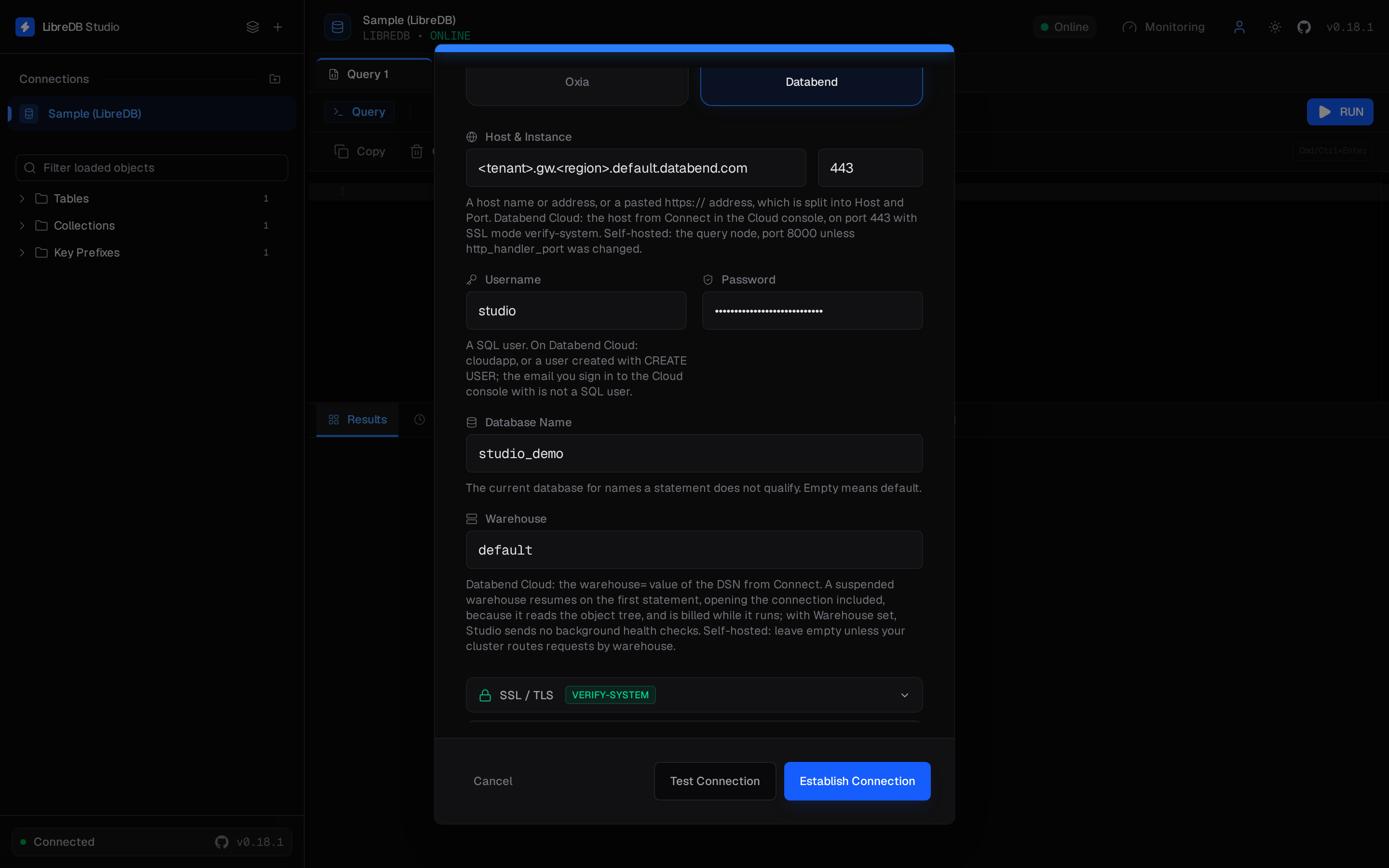
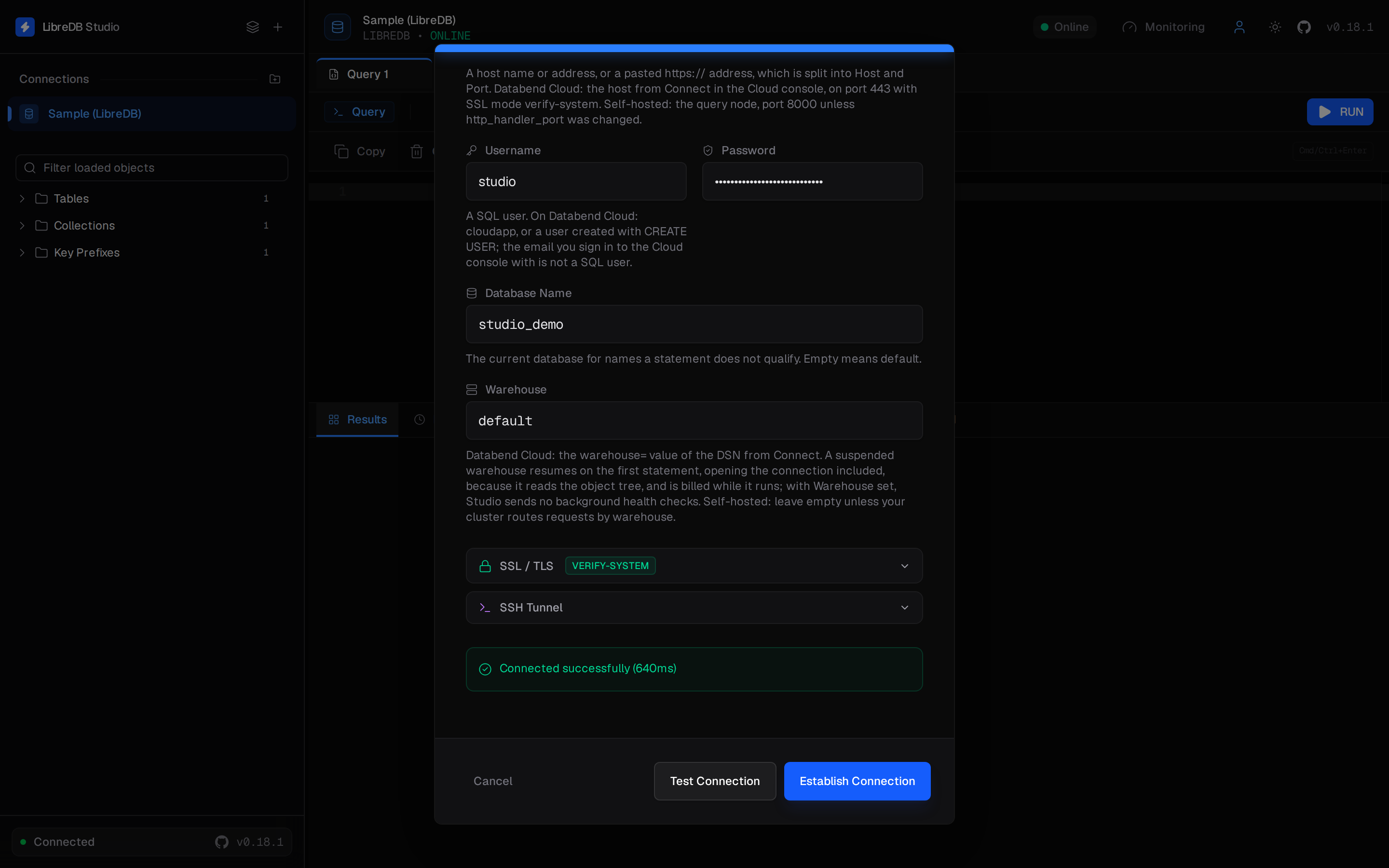
- Click Test Connection, then click Establish Connection to save the connection.
Browse Objects and Run a Query
-
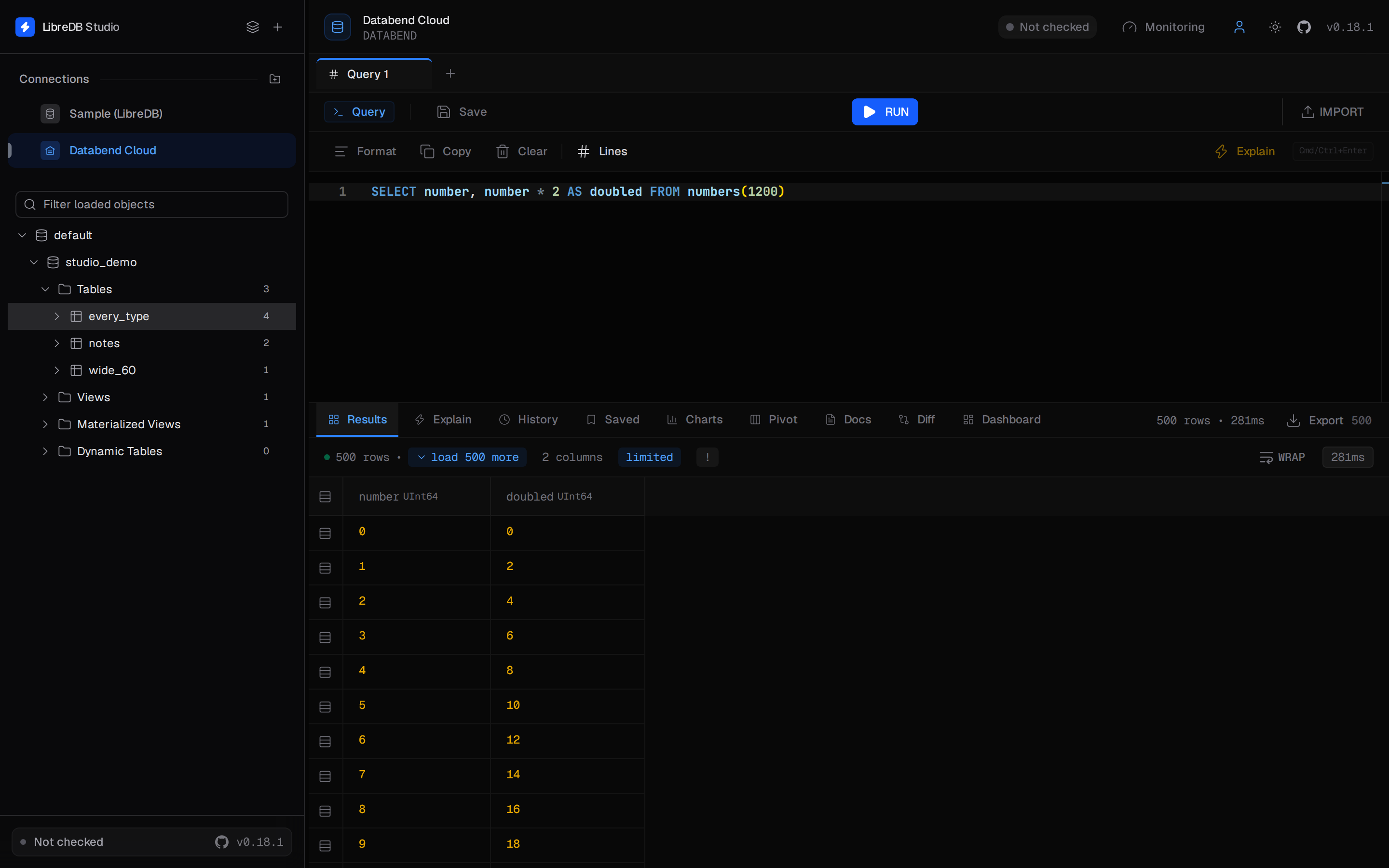
The object browser on the left lists the databases the user can see, with their tables, views and materialized views. Expand a table to see its columns, or click it to open a tab that runs
SELECT *on the table, limited to 50 rows. -
Write a statement in the editor and run it. LibreDB Studio runs the statement under the cursor:
SELECT number, number * 2 AS doubled FROM numbers(1200);
The result grid shows the first 500 rows. Click load 500 more to fetch the next ones.
- Click Explain to view the plan that Databend returns for a
SELECTstatement.
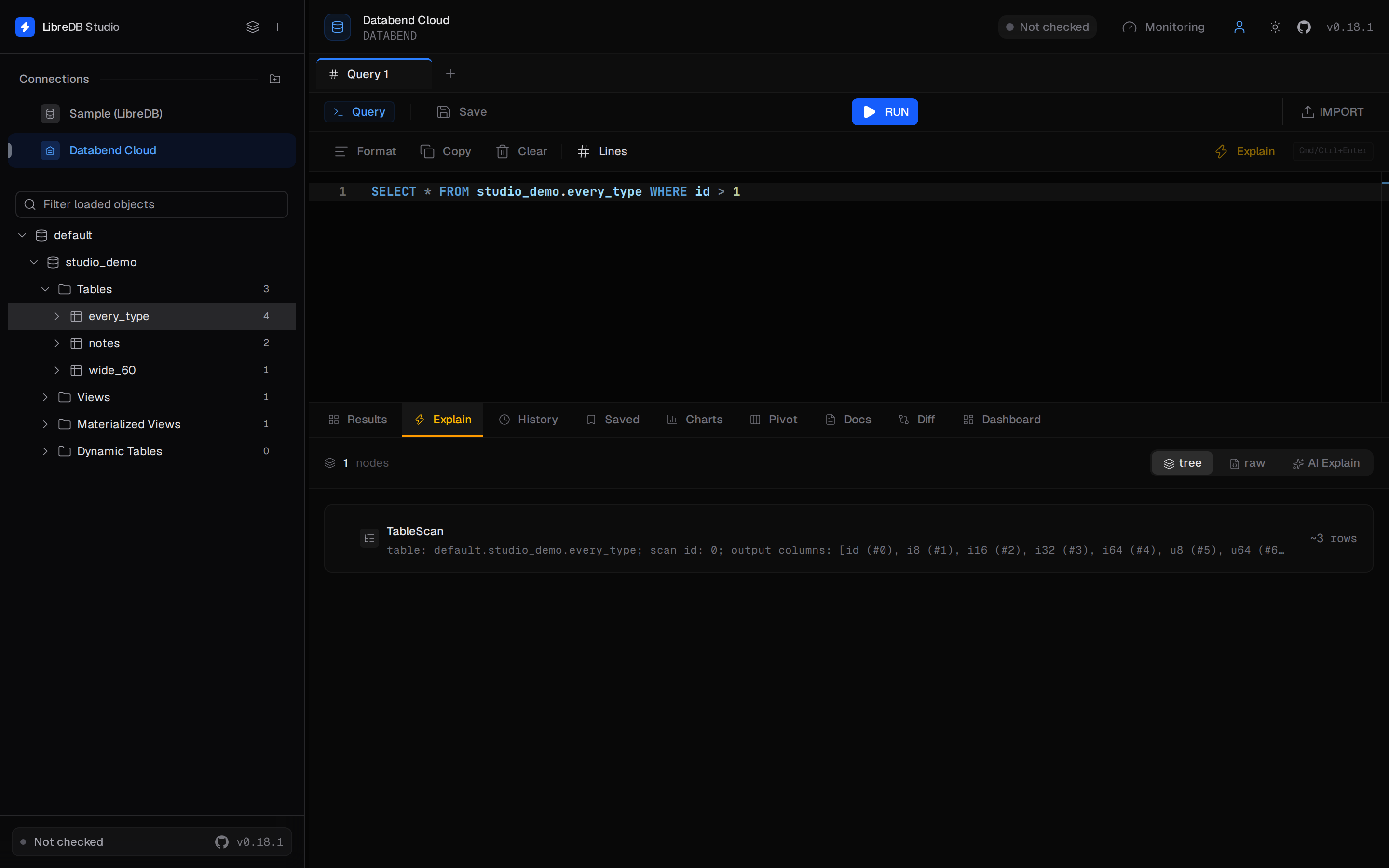
A suspended warehouse resumes on the first request and is billed while it runs. With Warehouse set, or with a Databend Cloud host, LibreDB Studio sends the connection no background health checks and does not open it by itself when you sign in. The warehouse resumes when you open the connection, load its objects or run a statement. If a resume takes longer than 10 seconds, LibreDB Studio reports that the warehouse may be resuming; try again in a minute.
Connecting to Self-Hosted Databend
Start Databend (Docker)
Run the following command to launch a Databend instance with the HTTP handler on port 8000. Set QUERY_DEFAULT_USER and QUERY_DEFAULT_PASSWORD together: the user is created only when both are given.
If no custom values for QUERY_DEFAULT_USER or QUERY_DEFAULT_PASSWORD are specified when starting the container, a default root user will be created with no password.
docker run -d --name databend \
  -p 8000:8000 \
  -e QUERY_DEFAULT_USER=databend \
  -e QUERY_DEFAULT_PASSWORD=databend \
  datafuselabs/databend:latest
Configure Connection
-
In LibreDB Studio, click the + (New connection) button in the left sidebar and select Databend as the connection type.
-
Enter the connection details:
| Field | Value |
|---|---|
| Host & Instance | 127.0.0.1 and port 8000 |
| Username | databend |
| Password | databend |
| Database Name | Leave empty, or default |
| Warehouse | Leave empty |
Keep SSL Mode at disable, the default for a self-hosted server without TLS.
- Click Test Connection, then click Establish Connection.
LibreDB Studio does not send a password without TLS to a host other than the local machine. This also applies when LibreDB Studio runs in a Docker container, where Databend is not at 127.0.0.1. In that case, enable TLS on Databend's HTTP handler and choose verify-ca or verify-full under SSL / TLS, connect through an SSH tunnel, or, on a network you trust, tick Send the password without TLS for that connection.
Limitations
- One statement per request. Text with several statements is refused. The editor runs the statement under the cursor, and a selection of several statements is sent one statement at a time.
- Each statement runs in its own session.
USE,SET,SET VARIABLE,SET ROLE, a transaction started withBEGINand a temporary table last for their own statement only, and LibreDB Studio rolls back a transaction left open and says so. Set Database Name on the connection, qualify names, or useSET GLOBAL. - SQL user and password only. Access tokens, key pairs, the MySQL handler and Flight SQL are not supported.
- Result bounds. A statement reads up to 16 MiB, 250,000 cells or 100,000 rows; a result cut by a bound says which bound it reached.
- Not available for Databend connections: inline row editing, the create table dialog, data import, a list of stages, and AI agent mode. Stage and
COPY INTOstatements run as you write them in the editor. - Databend v1.2.881 or later is recommended.